
You've found a competitor who clearly knows what they're doing. Their product range is dialed in, their pricing looks deliberate, and you want the whole thing in front of you — every product, every variant, every price and image — in a spreadsheet you can actually sort and study.
Copying it by hand is a non-starter. A 400-product store would eat your whole day, and you'd still miss half the variants. And most "competitor research" tools show you a revenue estimate and a few top products, then ask for your card before they'll let you export anything real.
You don't need any of that. This guide covers how to download a competitor's entire Shopify catalog — all of it, not a sample — into a clean CSV, for free. I'll show the manual method first so you understand what's happening under the hood, then the one-click way.
Why download a competitor's full catalog?
A handful of products tells you almost nothing. The full catalog tells you:
- How they price across a whole range, not just on one hero product.
- Which categories they've gone deep in, and where the gaps are.
- Their variant and bundle strategy — sizes, colors, kits.
- How they title and describe products to rank and convert.
- Which products are old and which were added recently.
Get all of that into one spreadsheet and an afternoon of sorting beats weeks of guessing. The goal is to study the catalog, not clone it — more on where that line sits below.
Method 1: The /products.json trick (and where it falls short)
Every Shopify store exposes a hidden endpoint:
https://anystore.com/products.jsonOpen that in your browser and you'll see raw product data as JSON. It's real, it's public, and it's free. For a quick look, it's great. For the entire catalog, it fights you:
- It returns only 250 products per page, so a big store forces you to walk
?page=2,?page=3, and keep going by hand. - The output is JSON, not a spreadsheet, so you still have to convert it before it's usable.
- You can't filter by collection or pull best-sellers only.
- Some stores disable it entirely, and then you get nothing.
Fine for confirming a store runs on Shopify. Not how you want to download a 1,000-SKU catalog.
Method 2: The best-seller URL trick
Add this to the end of any collection URL:
yourcompetitor.com/collections/all?sort_by=best-sellingShopify re-sorts the page with its best-sellers first. It's the fastest way to see what's actually moving in a store. But two limits: it's a page you look at, not a file you download, and it only shows one collection's order — not the whole catalog with all the data attached.
Useful as a first read. Not a download.
Method 3 (the easy way): Download the whole catalog with ShopProductScraper
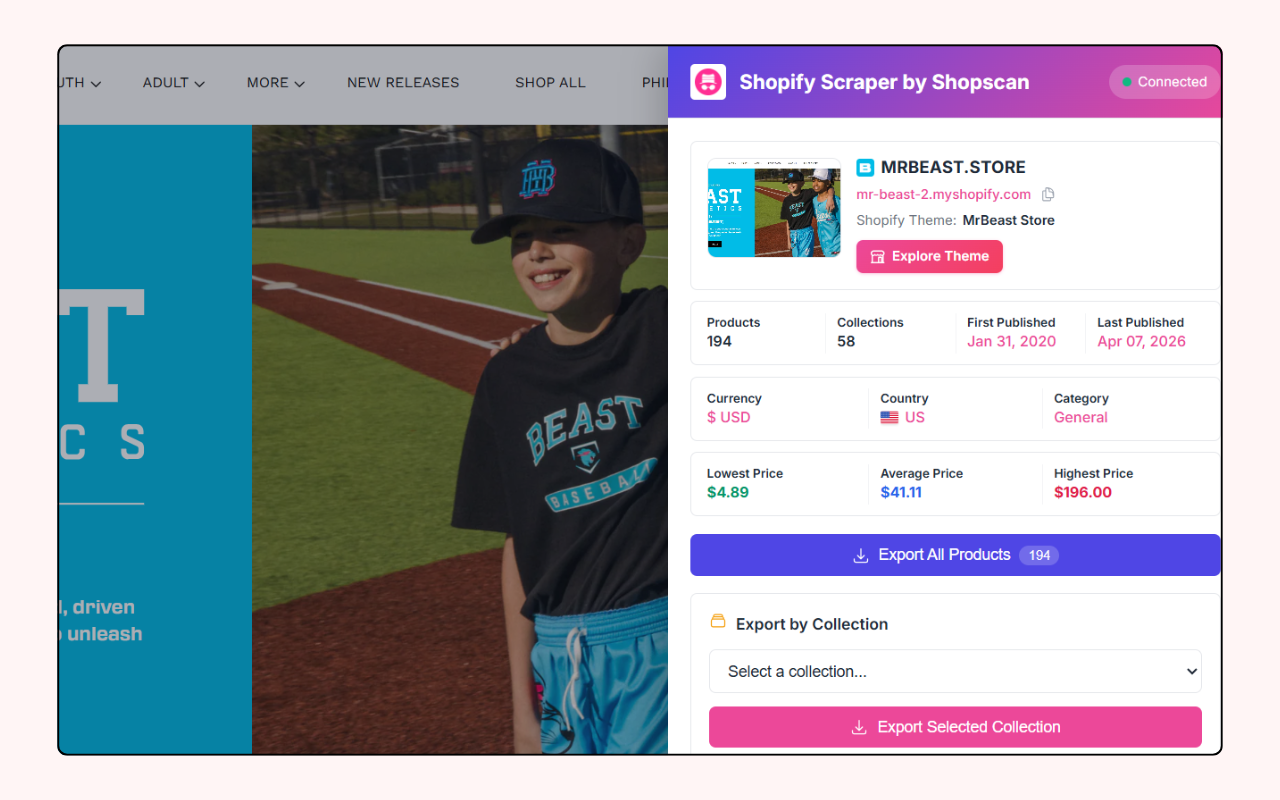
ShopProductScraper is a free Chrome extension that does exactly this. No account, no payment, no code. Open a store, click, export. That's the whole thing.
Step 1 — Install and pin it
Add ShopProductScraper from the Chrome Web Store. It works on Chrome, Brave, Edge — any Chromium browser — and installs in a couple of seconds. Then click the puzzle-piece icon in your toolbar and pin it, so it sits one click away on every page.
Step 2 — Open the competitor's store
Go to any Shopify storefront. Your competitor's, a supplier's, a brand you admire — if it runs on Shopify, it works.
Step 3 — Read the store overview
Click the icon. Before you even touch the products, you get a read on the store itself:
- Location — where the store is based.
- Creation date — how long it's been running.
- Theme — which Shopify theme it uses.
- Apps — the apps installed on the store.
That context matters. A two-month-old shop on a free theme is a very different competitor than a five-year-old brand stacked with premium apps. (If the tech stack is all you're after, the Shopify App Detector and Shopify Theme Detector do that part on their own.)
Step 4 — Download the entire catalog
Below the overview, you'll see the store's products. To grab everything, export all products to CSV. The whole catalog comes down in one file — every product, with its variants, images, prices, and SKUs. No row caps, nothing hidden behind a paywall.
Need something narrower? You've got three ways to scope it down, and all of them produce a clean CSV:
- Export by collection — pull one category at a time.
- Best-sellers only — export just the top performers.
- Search and export — find specific products by keyword and grab only the matches.
Step 5 — Open it
The file is a standard CSV. It opens straight in Excel, Google Sheets, or Numbers — and it's formatted for Shopify's own import tool, so there's no conversion step and no cleanup.
What's actually in the export
Each row carries the full product data Shopify shows publicly:
- Titles and descriptions
- Images and image URLs
- Variants (size, color, and so on) with their prices
- Compare-at prices
- SKUs and barcodes
- Tags and collections
- Inventory and availability status
That's everything you need to analyze pricing, range, and positioning in a spreadsheet — or to use as a starting structure for your own listings.
Which method should you use?
| Need | Best option |
|---|---|
| Confirm a store runs on Shopify | /products.json in the browser |
| See what's selling, fast | ?sort_by=best-selling on a collection |
| The entire catalog in a spreadsheet | ShopProductScraper → export all products |
| One category only | Export by collection |
| Just the winners | Best-sellers export |
| A few specific items | Search and export |
For anything past a 30-second glance, the extension wins — mostly because you skip the JSON-to-spreadsheet step entirely, and you actually get all of it.
What to do with a competitor's catalog (and what not to)
Once it's in a sheet, the useful work is analysis:
- Sort by price to see their range and where they anchor.
- Count products per collection to find depth and gaps.
- Look at the variant spread — are they winning on options you don't even offer?
- Read their titles and descriptions for the keywords they lean on.
The line to stay on the right side of: research and sourcing, not cloning. Don't lift their product descriptions word for word, don't reuse their images, and don't copy a brand wholesale. Use the data to make sharper decisions about your own store.
Is downloading a competitor's products legal?
Public storefront data — the titles, prices, and images shown to any visitor — is generally fine to collect. Price-comparison sites do it every day. The sensible rules:
- Stick to public storefront data. Don't try to reach orders, customers, or anything behind a login.
- Don't hammer a store with thousands of rapid requests.
- Use the data for research and analysis, not to copy a brand outright.
ShopProductScraper only reads what's already public on the page, so you stay on the right side of this by default. (I covered the same ground in more detail in the free Shopify scraping guide if you want the longer version.)
Bottom line
Downloading a competitor's entire Shopify catalog doesn't take code, a subscription, or a copy-paste marathon. The /products.json trick is handy for a peek, and ?sort_by=best-selling shows you what's moving. But when you want the whole catalog — every product, variant, and price — in a clean, import-ready CSV, install ShopProductScraper, open the store, and click. You'll have the full file in under a minute, for free.